
Create Origin Pools
Objective
This guide provides instructions on how to create origin pools in F5® Distributed Cloud Console (Console) using guided configuration. The origin pools are a mechanism to configure a set of endpoints grouped together into a resource pool used in the load balancer configuration. To learn more about endpoints and load balancers, see Load Balancing and Service Mesh.
Origin pools offer the following:
-
Configure endpoints for discovery
-
Define load balancing between discovered endpoints
-
Create health checks for discovered endpoints
-
Specify TLS capabilities of and to the endpoints discovered
Prerequisites
The following prerequisites apply:
-
An F5® Distributed Cloud Services Account. If you do not have an account, see Getting Started with Console.
-
A valid DNS domain delegated to Distributed Cloud Services. For instructions on how to delegate your domain, see Domain Delegation.
-
A Distributed Cloud Services CE site for deploying your applications on the CE site. If you do not have a site, create a site using the instructions included in the Customer Edge Deployment guides. See the vK8s Deployment guide to deploy your applications on the Distributed Cloud Services cloud or edge cloud.
Configuration
The configuration option to create the origin pool guides you through the steps for required configuration.
Note: You must create the origin pool and the load balancer for minikube, vK8s, or managed K8s service in the same namespace as the services, so that the services can be discovered and advertised. If you are using the K8s service name as the server configuration, the service name must be in the
<k8s-service.k8s-namespace>format. You must set the vK8s network where the services are deployed.
Step 1: Navigate to origin pool configuration.
- In Console, click Multi-Cloud App Connect.

Figure: Console Homepage
-
Change to your application namespace.
-
Click Manage > Load Balancers > Origin Pools.
-
Click Add Origin Pool to open the creation form.
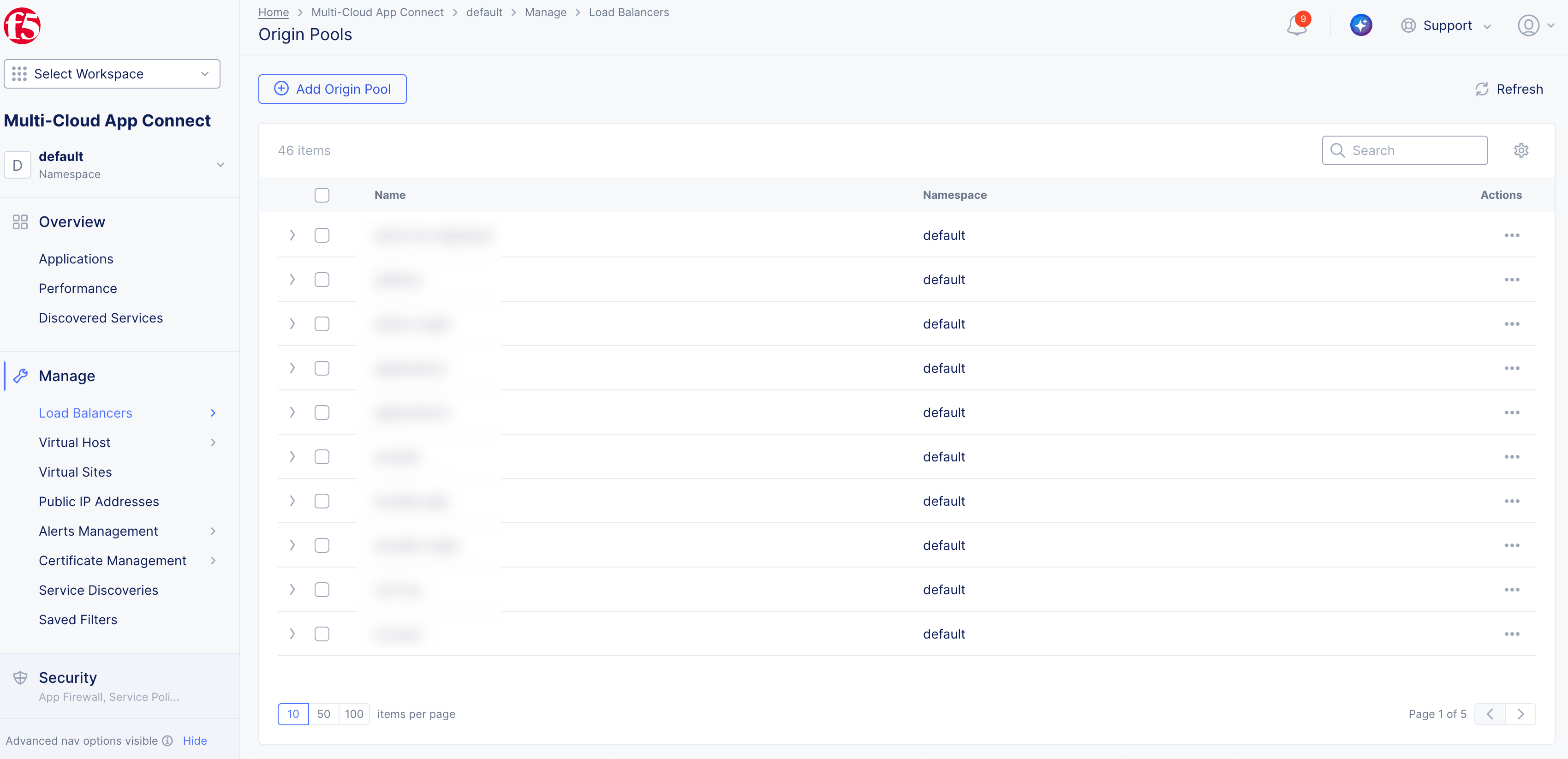
Figure: Navigation to Origin Pools
Step 2: Start the origin pool creation process.
-
In the Name field, enter a name.
-
Optionally, add labels and enter a description for your origin pool.
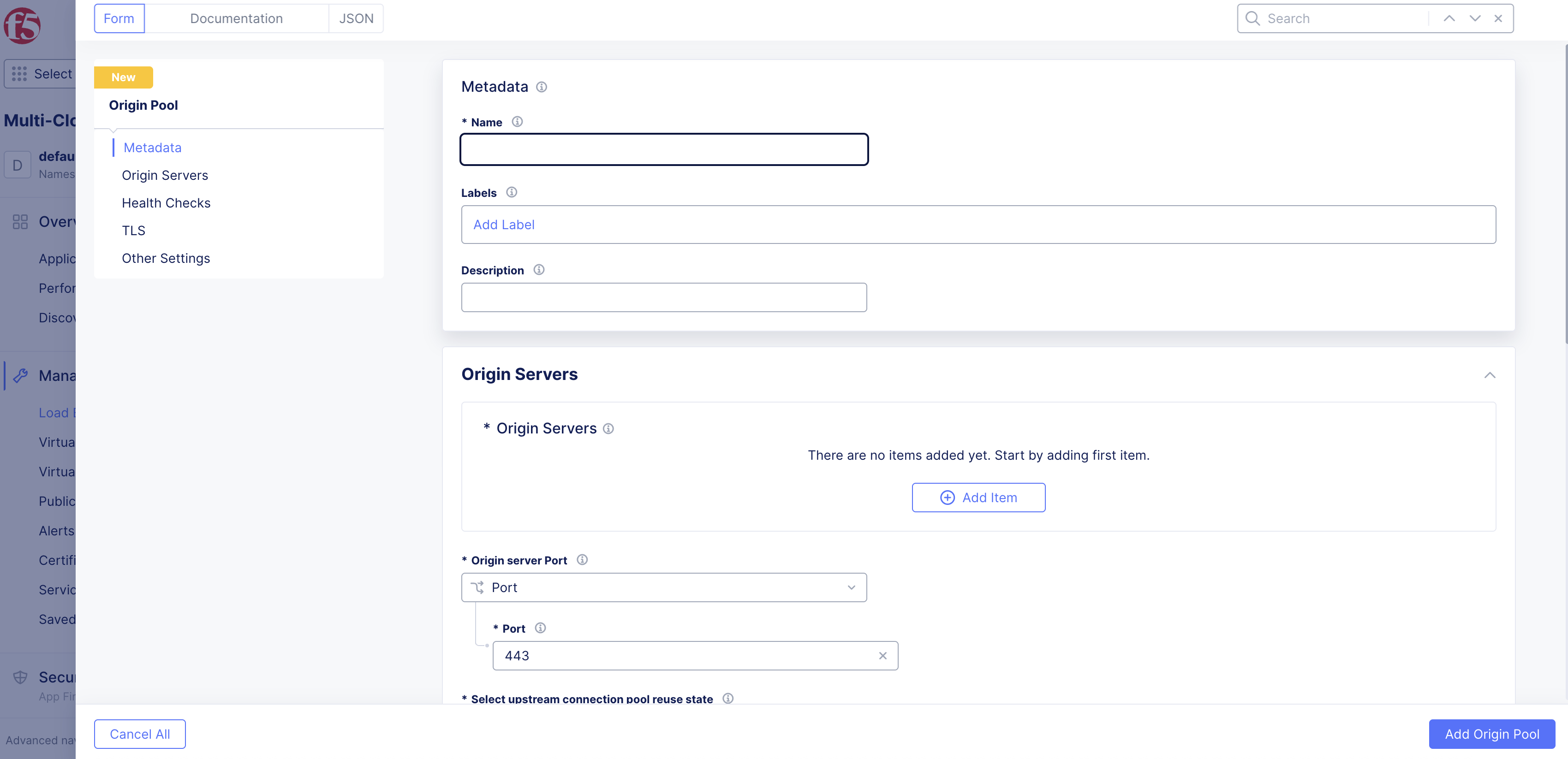
Figure: Origin Pool Name
Step 3: Configure the origin servers.
-
Select from the left menu or scroll to the Origin Servers section and perform the following:
-
Click Add Item.
-
From the Select Type of Origin Server menu, select a type of origin server per the following guidelines:
-
Select Public IP of Origin Server to specify the origin server with its public IPv4 address. Enter the IP address in the Public IPv4 field.
-
Select IP address of Origin Server on given Sites to specify the origin server with its private or public IP address. Enter the IP address in the IP field. Select Site or Virtual Site option in the Site or Virtual Site menu. Select a site or virtual site according to the displayed Site or Virtual Site menus. Select the Inside Network, Outside Network, or Segment option from the Select Network on the site menu. For Segment, select the segment from the drop-down menu. From the Select SNAT Pool Choice menu, select an option to configure a SNAT pool for your origin pool. Depending on which IP version you use, select Add Item and enter the prefix used for your endpoints in the SNAT pool.
-
Select Public DNS Name of Origin Server to specify the origin server with its public DNS name. Enter the DNS name in the DNS Name field.
-
Select DNS Name of Origin Server on given Sites to specify the origin server with its private or public DNS name. Enter the DNS name in the DNS Name field. Select Site or Virtual Site option in the Site or Virtual Site menu. Select a site or virtual site according to the displayed Site or Virtual Site menus. Select the Inside Network, Outside Network, or Segment option for the Select Network on the site menu. For Segment, select the segment from the drop-down menu. From the Select SNAT Pool Choice menu, select an option to configure a SNAT pool for your origin pool. Depending on which IP version you use, select Add Item and enter the prefix used for your endpoints in the SNAT pool.
-
Select K8s Service Name of Origin Server on given Sites to specify the origin server with its K8s service name. Enter the service name in the Service Name field. Select Site or Virtual Site option in the Site or Virtual Site menu. Select a site or virtual site according to the displayed Site or Virtual Site menu. Select inside or outside network option from the Select Network on the site menu. From the Select SNAT Pool Choice menu, select an option to configure a SNAT pool for your origin pool. Depending on which IP version you use, select Add Item and enter the prefix used for your endpoints in the SNAT pool.
-
Select Consul Service Name of Origin Server on given Sites to specify the origin server with its consul service name. Enter the service name in the Service Name field in the
<servicename.k8snamespace>format. Select Site or Virtual Site option in the Site or Virtual Site menu. Select a site or virtual site according to the displayed Site or Virtual Site menu. Select inside or outside network option for the Select Network on the site menu. From the Select SNAT Pool Choice menu, select an option to configure a SNAT pool for your origin pool. Depending on which IP version you use, select Add Item and enter the prefix used for your endpoints in the SNAT pool. -
Select IP address on Virtual Network to specify the origin server with its virtual network IP address. Enter the IP address in the IPV4 field. Select the virtual network from the Virtual Network menu.
-
Select Name on Virtual Network to specify the origin server with its virtual network name. Enter a DNS name for the virtual server in the DNS Name field. Select the virtual network from the Virtual Network menu.
-
Select Custom Endpoint Object for Origin Server to specify the origin server on an endpoint object. Select the reference to the endpoint from the Endpoint menu. An existing endpoint object is required for this option.
-
Select cBIP Service Name of Origin Server to specify a Classic BIG-IP instance as the origin server.
-
-
Click Apply.
-

Figure: Configure Origin Server
- Optionally, use Add Item to add more than one origin server.
Note: If you have created an Internet VIP in order to use the AWS Internet Network Load Balancer (NLB) VIP, the origin server type must be set to either Public DNS Name of Origin Server or DNS Name of Origin Server on given Sites. For more information, see Create AWS Site (Orchestrated).
To learn more about SNAT pool usage, see SNAT Pool Configuration in Origin Pool.
-
Use the Origin server Port drop-down menu to select a port type:
- Port: Enter a port number in the Port field.
- Automatic Port: For Consul service discovery, the port is automatically discovered as part of service discovery. For other origin server types, the port is automatically set to 443 if TLS is enabled, or 80 if TLS is disabled.
- Load Balancer Port: The endpoint is selected based on the load balancer port.
-
From the Select upstream connection pool reuse state menu, optionally choose to disable the upstream connection pool reuse state for every downstream connection. Connection pool reuse is enabled by default. When connection pool reuse is enabled, Distributed Cloud can reuse existing upstream connections to proxy the requests from multiple downstream connections. This eliminates the time needed to open a new server-side connection for every client connection and reduces the overall latency. When connection pool reuse is disabled, Distributed Cloud Services opens a new upstream connection for every downstream connection. This feature is only available for HTTPs load balancers.
-
From the Port used for health check menu, select an option.
-
From the Load Balancer Algorithm and Endpoint Selection menus, select an option.
Note: See the Discover Service Endpoints Using HashiCorp Consul guide for information on how to discover Consul services.
Step 4: Optionally, configure health checks.
-
Select from the left menu or scroll down to the Health Checks section.
-
Click Add Item.
-
From the Health Check object menu, select an existing health check object or click Add Item to create a new object and perform the following:
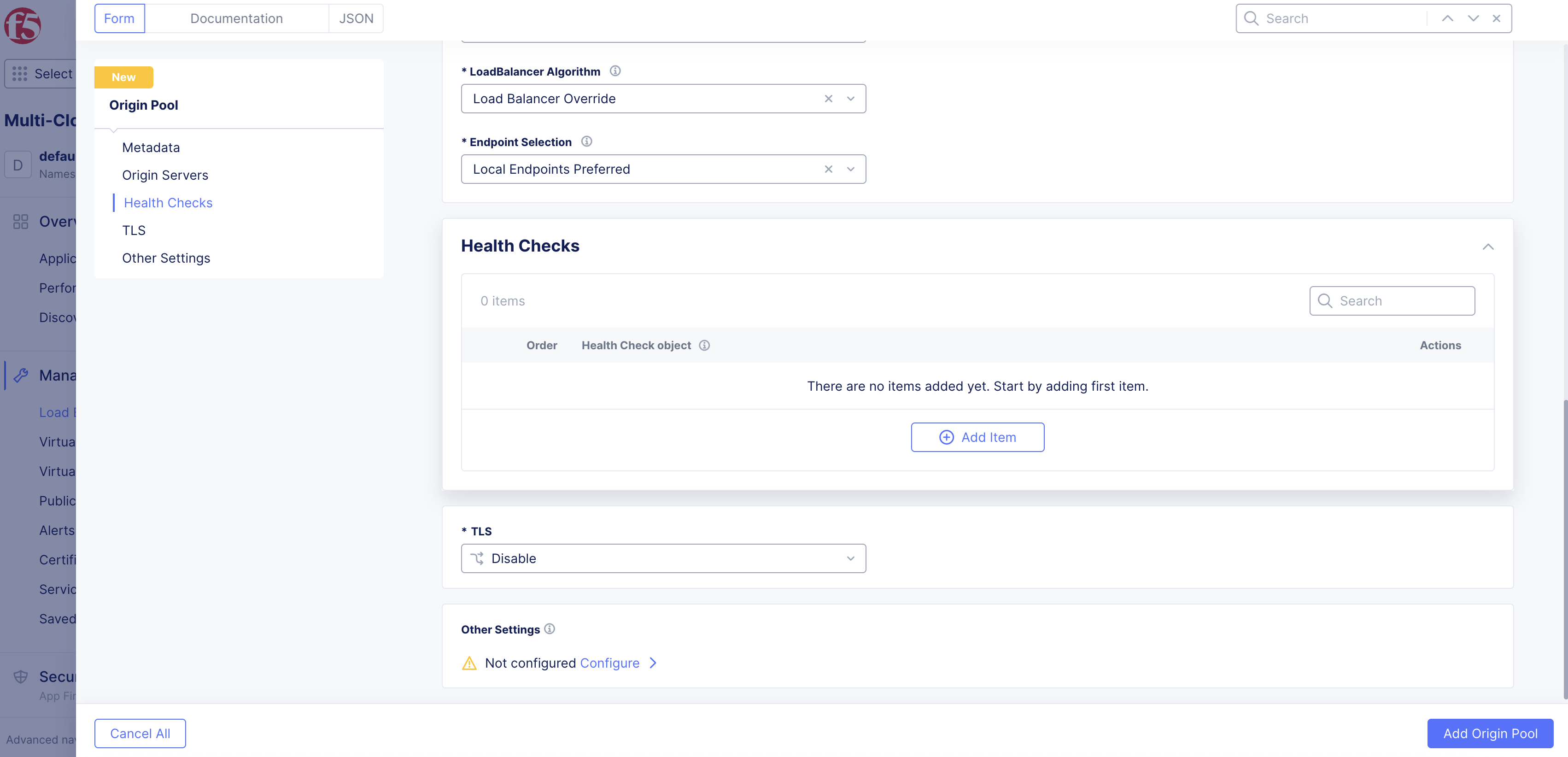
Figure: Configure Health Check
-
Enter a name. Optionally, set labels and add a description in the Metadata section.
-
From the Health Check menu, select an option. Then, click Edit Configuration. Configure as desired.
-
Enter values in seconds for the Timeout and Interval fields, respectively.
-
Enter numbers for the unhealthy and healthy threshold attempts for the Unhealthy Threshold and Healthy Threshold fields, respectively.
-
Click Add Health Check.
Step 5: Optionally, set TLS configuration.
-
From the left menu, select TLS.
-
From the TLS menu, select Enable. The default option is set to Disable.
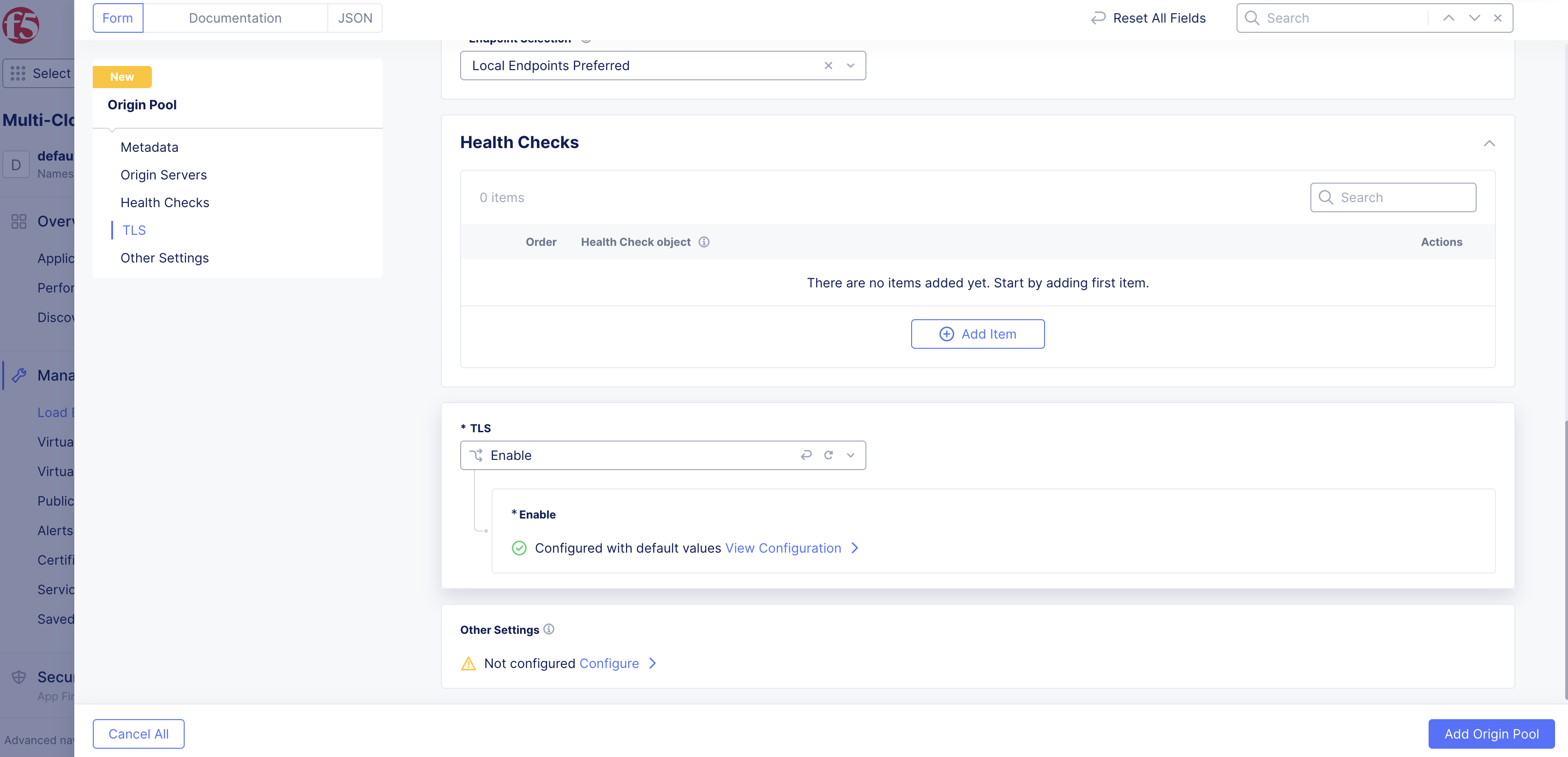
Figure: Configure TLS
-
Select View Configuration to configure custom TLS parameters:
-
From the SNI Selection menu, select an option. If you select SNI Value, you must enter a corresponding value. You can disable SNI selection by selecting No SNI.
-
From the TLS Security Level menu, select a security level. High security is selected by default. If you select Custom, complete the parameters.
-
From the Origin Server Verification menu, select an option for the trusted CA URL. If you select Use Custom CA List, you can enter it in certain formats by choosing from the options available. You can also skip origin server verification by selecting Skip Verification.
-
From the mTLS with Origin Servers menu, choose an option from the following:
-
Disable: Default option. Client authentication is not required.
-
Select/add a TLS Certificate object for client authentication: This option enables you to create a new TLS certificate or select an existing TLS certificate from Certificates Management.
-
Upload a client authentication certificate specifically for this Origin Pool: This option enables you to upload a TLS certificate for this origin pool specifically. To upload, click Configure.
-
-
-
Click Apply.
Step 6: Optionally, set the advanced options.
-
Select from the left menu or scroll down to the Other Settings section.
-
Click Configure.
-
Configure the options marked with an asterisk.
-
In the Origin Server Subsets section, choose an option to enable or disable subset load balancing.
-
In the Miscellaneous Options section, choose to enable the HTTP 2 protocol for upstream connections.
Note: Protocol extensions, such as the X-Forwarded-For header for HTTP, require knowledge of the underlying protocol (such as HTTP). For layer 4 applications, F5 Distributed Cloud load balancers now support versions 1 (human-readable format) and version 2 (binary format) of the PROXY protocol spec, which conveys the original connection parameters, such as the client IP address, to the backend servers. Use the Proxy Protocol Configuration drop-down menu to select the appropriate version.
- Click Apply.
Step 7: Complete origin pool creation.
Click Add Origin Pool to complete creating the origin pool.